Outreach
Find contact information and draft personalized outreach.
Outreach helps you find candidate contact information and draft personalized messages based on a candidate's public work signals.
DINQ can use profile context such as open-source contributions, papers, projects, and professional background to generate a first draft. You can edit the message before sending.
Contact information lookups
When available, DINQ can help find candidate email contact information. A successful lookup costs 20 Credits per candidate, not per email address returned. Lookups that find no email do not consume Credits.
For more details, see Pricing & Credits.
Use Get email in a candidate profile or the search results' email column, or select several candidates for a bulk lookup. Generating a profile does not include the email-lookup fee.
Once found, copy the email or open the send action. If the interface reports that the result was not saved to history, use its retry-save action rather than repeatedly starting a fresh lookup.
Connect your sender email first
Before sending a real email, connect a sender mailbox, such as Gmail or Microsoft (Outlook), under Integration and set your sender name and signature. If several senders are connected, choose the correct account before sending. Reconnect an expired account when prompted.
See Email Integration. The recipient's discovered address and your connected sender account are separate settings.
Context-driven personalization
Effective outreach should reference real evidence from a candidate's work instead of relying on generic templates.
DINQ may help personalize messages using signals such as:
- Open-source impact: Specific pull requests, contribution history, repository ownership, or project work.
- Research milestones: Published papers, datasets, citation achievements, or conference presentations.
- Real-world output: Live product demos, personal projects, portfolio work, or code examples.
- Technical fit: Skills, tools, systems, or domains that match the role you are hiring for.
Example outreach
When reaching out, anchor the message in something specific and relevant from the candidate's profile.
Hi Alex, I saw your recent contributions to the vLLM repository. Our team is scaling LLM inference infrastructure, and your hands-on optimization work looks relevant to what we are building. I’d love to connect and learn more about what you are working on now.
Edit before sending
Every AI-generated message is a draft. Before sending, review the message for accuracy, tone, role details, and referenced links.
Make sure the message reflects your real hiring need and the candidate's actual background.
Drafts, reference material, and templates
In the email editor, choose a contact purpose and generation language, add context, and ask AI to draft the subject and body. Attach reference material or choose an existing template when useful.
Save the current draft as a template, or create and delete templates. Templates and generated drafts still require a review for this role, recipient, and supporting facts. Saving a template does not send an email.
Confirm and send
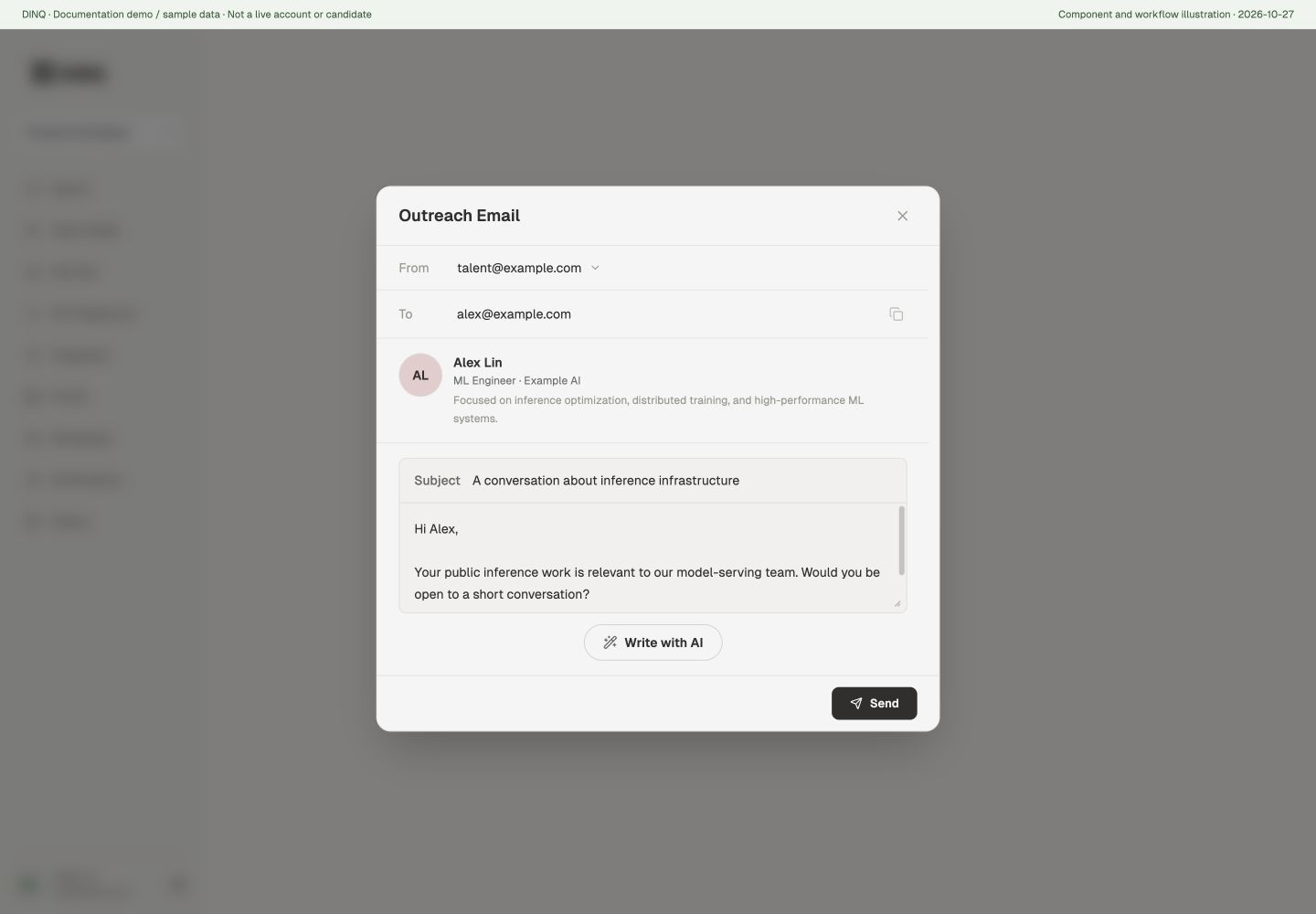
Check the recipient, sender, subject, body, and signature before clicking Send. Generating a draft or copying an address is not proof that contact has occurred. Do not assume private messaging or automatic follow-up sequences will send on your behalf.
Respect communication preferences and correct unsupported or inappropriate content before sending.