Team Workspaces
Join and switch teams, manage roles, seats, and Credit usage.
Team workspaces manage members, seats, usage, and team workflow context. They are separate from personal Profiles and the retired organization-profile feature.
Switch spaces
Use the sidebar space switcher to choose your personal space or a team you have joined. Search history, Shortlist, Radar, and requests use the active workspace context. If previous data seems missing, check both the selected space and signed-in account.
Available teams depend on membership and configuration. If none is listed, ask an administrator for an invitation or contact support about access.
Join a team
- Get a workspace invitation email, join link, or code from an administrator.
- Sign in to DINQ and open the link, or enter the code through the join-team entry.
- Check the team name and invitation information, then confirm joining.
- Switch to that team before starting work or checking usage.
Workspace codes and referral reward codes serve different purposes. For an expired, cancelled, mismatched, or seat-blocked invitation, contact the administrator rather than creating repeated personal accounts.
Roles and permissions
| Role | Main scope |
|---|---|
| Owner | Team ownership, settings, member roles, and available management actions |
| Admin | Invitations, ordinary-member management, and team usage within the allowed scope |
| Member | Team features within assigned access and limits, plus personal usage information |
Owners can change non-owner members between Admin and Member. Admin does not grant Owner privileges. Use the actions actually displayed; subscription details and team totals are not necessarily visible to every member.
Invitations and seats
Managers can enter an invitee's email and choose Admin or Member. Copy the join link or review pending invitations to resend or cancel them. A failed invitation email does not necessarily mean no invitation was created; check the returned join link.
Check available seats before inviting. Pending invitations may count toward the seat allowance. Review access implications before removing a member or leaving a team; leaving does not delete a DINQ account.
Team and member Credits
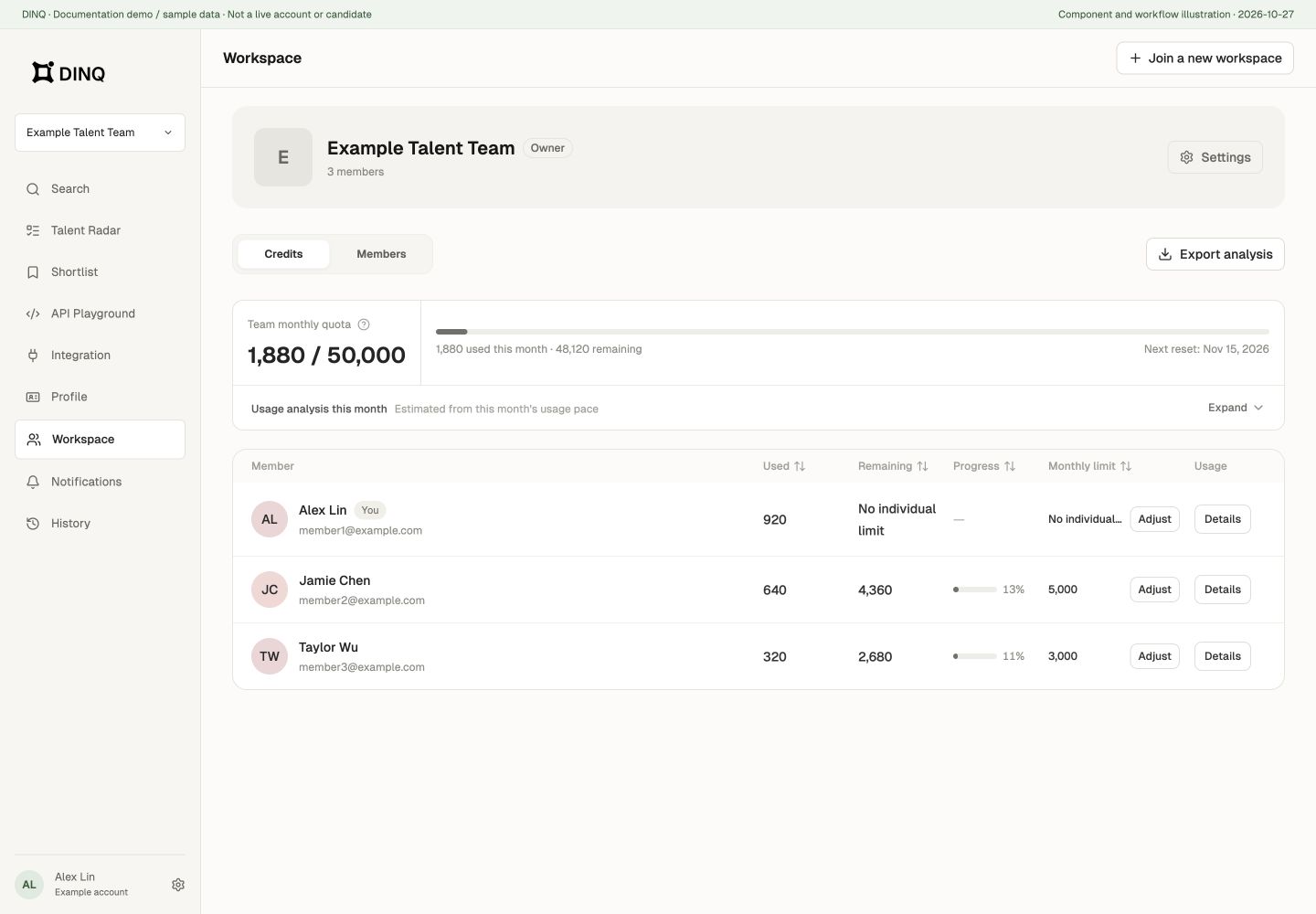
The management page shows available team totals, individual limits, used and remaining Credits, reset dates, and supported transaction records. Managers can set member monthly caps or leave a separate cap unset where allowed. No individual cap does not mean unlimited team Credits.
Use the displayed billing period and reset date rather than assuming the first of every calendar month. Contact Owner or Admin when team Credits or your limit run out. Personal pay-as-you-go does not automatically cover team usage.