Talent Radar
Continuously discover matching talent for long-term roles or candidate tracking.
Talent Radar helps you continuously discover matching talent for long-term roles, active sourcing projects, or candidate tracking.
Limited access: Talent Radar is currently available to a limited set of accounts. If you don't see it in your workspace, contact support to request access.
A Radar can be set up for:
- A specific job opening or role.
- An ongoing sourcing search.
- A talent pool that needs regular updates.
- A collaborative recruiting project shared across a team.
Create a Talent Radar
DINQ guides you through a short setup flow to define the talent you want to monitor.
Step 1: Describe your talent need
Go to Talent Radar and click Create Radar. Describe the ideal profile in natural language.
Examples:
- "Senior ML Engineer with 5+ years of experience."
- "Engineers working on LLM inference optimization in North America."
- "NLP researchers with an academic background who have published at ACL or EMNLP."
Step 2: Refine your search criteria
DINQ helps refine specific dimensions based on your initial description. For each dimension, you can select an AI-suggested option, type a custom answer, or skip the preference.
Step 3: Set execution preferences
Choose the automated search frequency and number of candidates to source per run.
- Search frequency: Hourly, daily, weekly, or monthly.
- Candidates per search: 10, 20, 30, or 50.
Step 4: Confirm and launch
Review your search parameters, frequency, and candidate count. You can optionally add a notification email to receive alerts. Click Launch Radar to begin tracking.
Manage Talent Radars
The Talent Radar dashboard supports table and card views. Click any active Radar to open its details page.
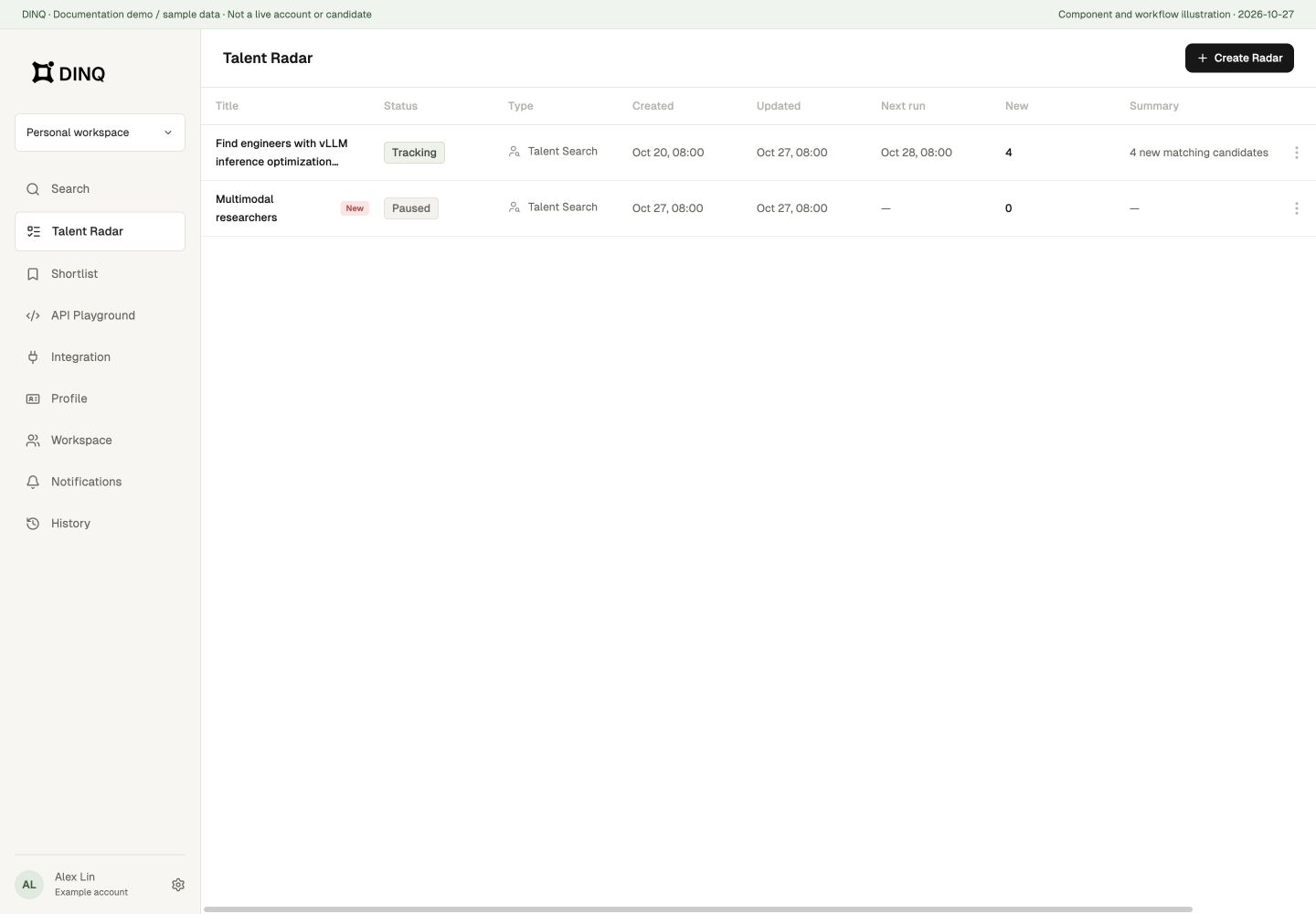
From the dashboard, you can review status, open details, pause a Radar, or delete a Radar.
Deleting a Radar is irreversible. Associated sourcing results and history are permanently removed.
Radar details
Each Radar details page includes three tabs:
- Radar details: View the search criteria, current status, and matching results.
- Search log: Review execution timestamps, total candidates scanned, high-match profiles, and new additions from each run.
- Credits: Track cumulative Credit usage for that Radar.
Radar types
Talent Radar supports two automated task types:
- Talent search: Continuously source new candidates matching a specific talent profile.
- Candidate tracking: Continuously monitor updates, career changes, or new public output from a specific person.
Usage and billing
Each automated search run consumes Credits at the same rate as a manual search. Higher search frequencies and larger candidate batches consume Credits faster.
You can pause or delete a Radar at any time to manage usage. If your account runs out of Credits, active Radar scans are automatically paused.
Talent Radar FAQ
What is the difference between Search and Talent Radar?
Search is a one-time operation. You enter a query, and DINQ returns a snapshot of currently matching candidates. Talent Radar is continuous. You configure it once, and DINQ runs background searches at your selected frequency.
How soon will I see results after creating a Radar?
Check the first run's status and search log in the detail page after launch. Timing depends on the request, available sources, and service state. Later runs follow the selected frequency; neither a fixed delivery time nor new candidates on every run is guaranteed.
Can I modify an existing Radar?
Open Settings from the Radar list menu or detail page to change its name, description, frequency, candidates per run, and notification email. An existing notification email currently cannot be saved as blank; replace it with another address if necessary.
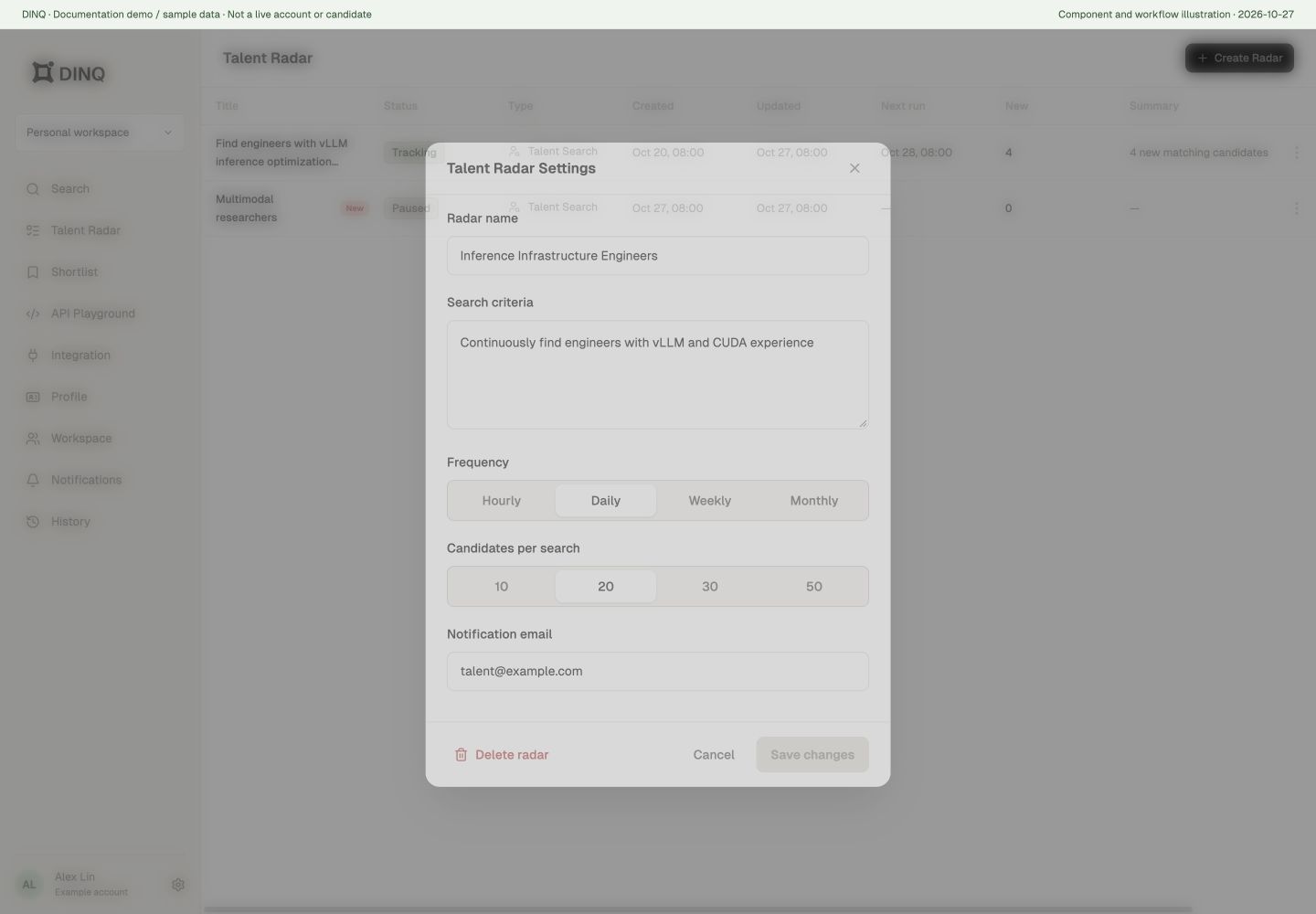
Those controls do not provide a full editor for the original structured search criteria. Create a new Radar to change the core criteria. You can also pause, resume, or delete a Radar; confirm you no longer need its results and history before deleting it.
What does "New Today" mean?
"New Today" is the number of newly discovered matching candidates that have not appeared in previous scans. DINQ filters duplicates so previously sourced candidates are not counted as new.