Email Integration
Connect Gmail, Microsoft (Outlook), or IMAP and manage senders, signatures, and expired authorization.
Open Integration in the sidebar to connect your own outreach mailbox. This is separate from email sign-in binding and the email publicly displayed on your Profile.
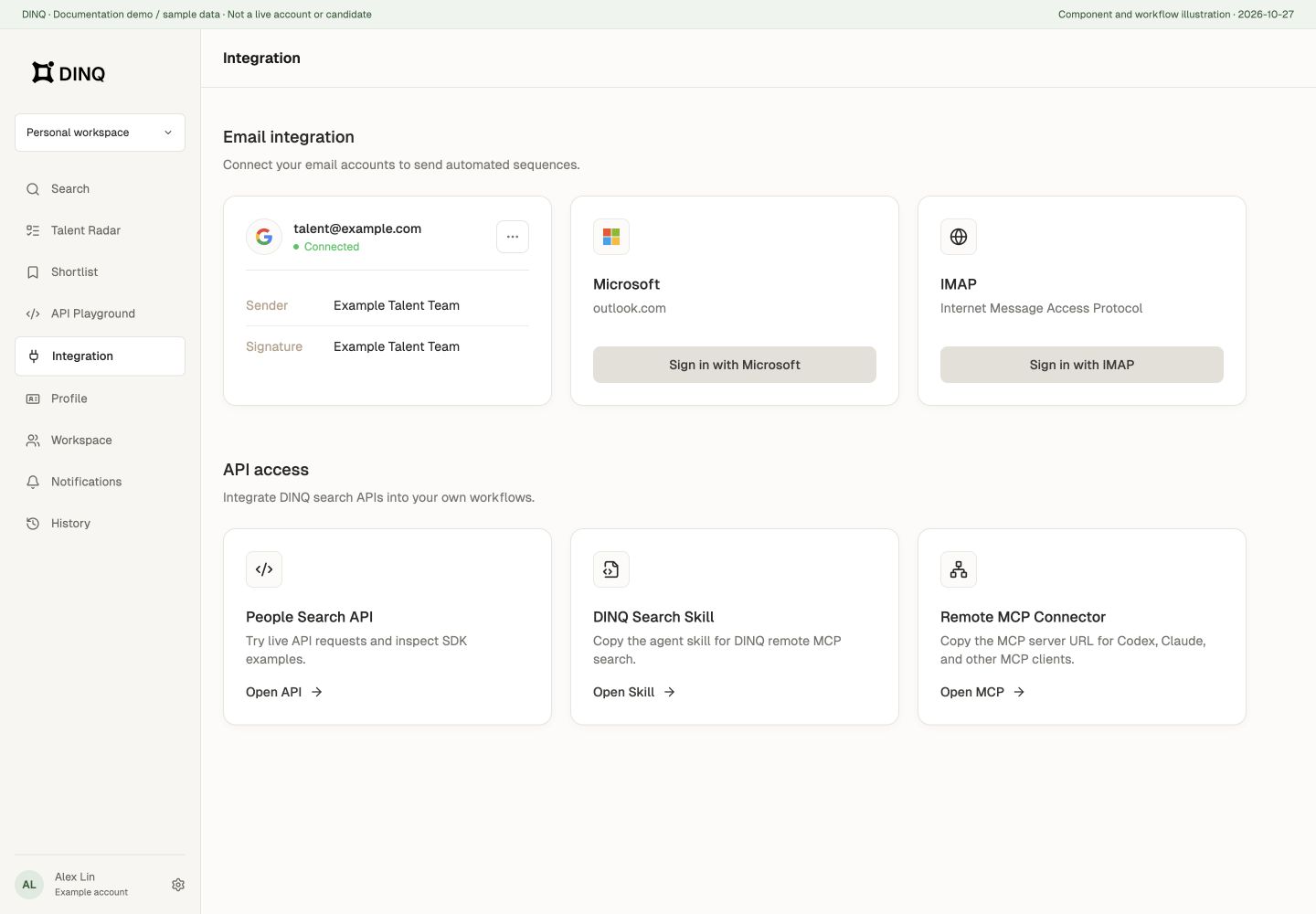
Connect a sender mailbox
- Select Gmail, Microsoft (Outlook), or the IMAP entry offered on the integration page. Availability depends on the current page and the provider's authorization requirements.
- Sign in to an account you are authorized to use and review the requested permissions.
- Return to DINQ and confirm the connected status.
- Edit and save the sender name and signature.
Manage a connection
Edit sender settings or disconnect an unused account. After changing a mailbox password or revoking authorization, check the connection again.
What to do when authorization expires
Mailbox authorization can expire even after a successful connection. If DINQ reports expired authorization or asks you to reconnect, reconnect and reauthorize that mailbox. Refreshing the page alone does not renew authorization.
- Return to Integration and find the mailbox with the expired connection.
- If the mailbox card only has a management menu, open its top-right menu, choose Disconnect, then use the provider's sign-in entry to connect the same mailbox again. The current card does not have a separate Reauthorize button.
- Complete sign-in and authorization as prompted by the provider; for IMAP, repeat its connection flow.
- Return to DINQ, confirm the mailbox is connected, and check the sender name and signature. Before sending in Outreach, review the sender, recipient, and email content.
Reauthorizing restores the mailbox connection and does not require a new DINQ account.
Connecting does not automatically send drafts. In Outreach, review the recipient and content and explicitly click Send.
Do not expose mailbox authorization tokens, API keys, or non-public candidate contacts in shared screenshots, documents, or public code.