Review Results
Review returned candidate lists and open promising profiles.
When a search finishes, DINQ shows a list of candidate results with basic information, public profile links, and context about why each person may match your search.
Treat the results page as a starting point for review, not a final decision. Scan the list first, then open the most promising profiles for deeper evaluation.
What you see in results
Candidate results may include:
- Name.
- Current role and company.
- Location.
- Public profile links.
- Relevant skills or project clues.
- A short note explaining why DINQ surfaced the candidate.
- An expandable profile or link to a deeper profile view.
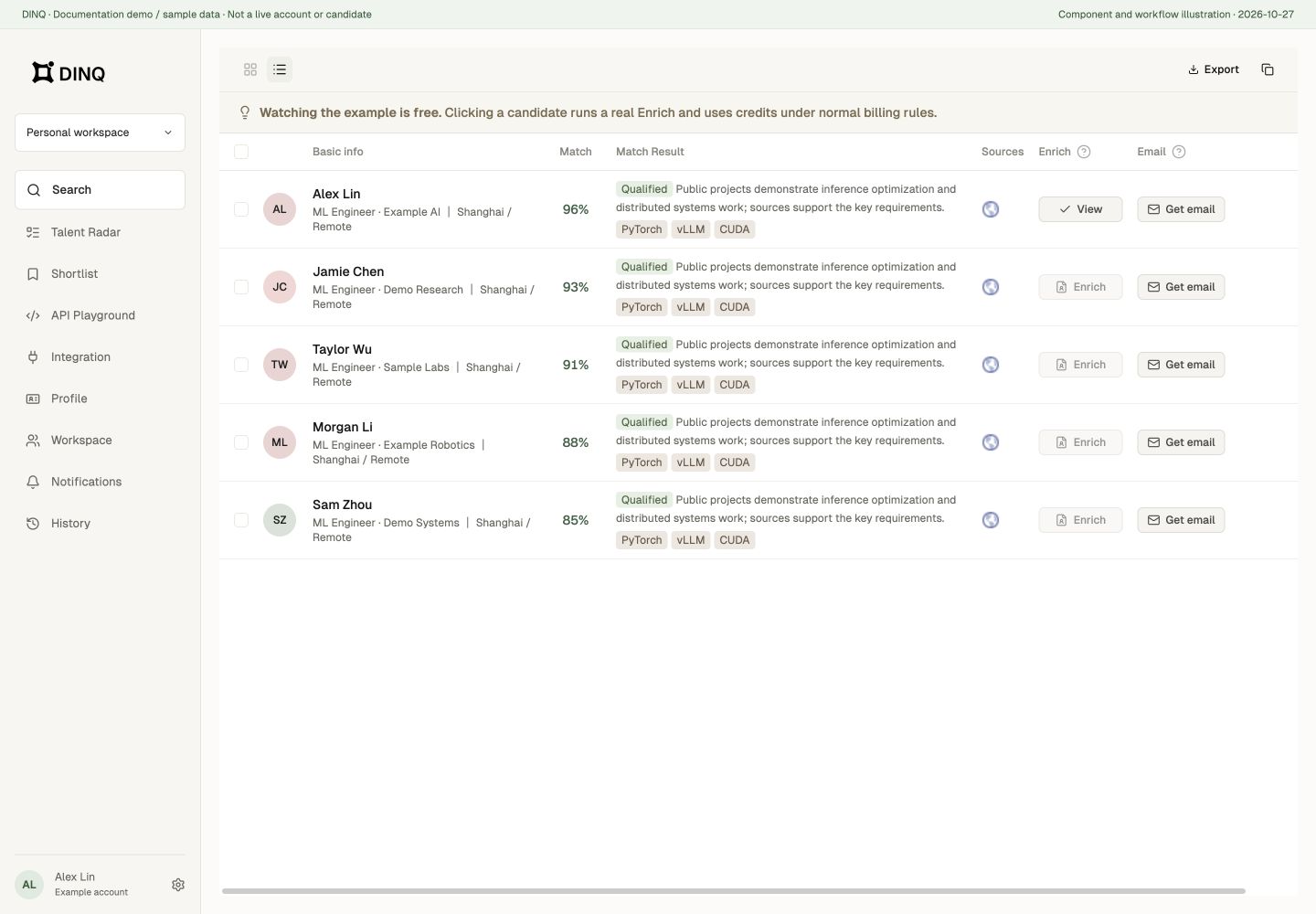
Scan the candidate list
Start by reviewing the full batch at a high level. Look for signs that the search direction is aligned with your needs:
- Are the roles and seniority levels close to what you expected?
- Do the candidates show relevant technical signals?
- Are the locations or work preferences reasonable?
- Are the results too broad, too narrow, too senior, or too junior?
Open promising profiles
Click into candidates who look relevant to review their enriched profile information. A full profile can help you understand their work, public contributions, research, background, and potential outreach context.
For deeper evaluation guidance, see Evaluate profiles.
Save candidates to a shortlist
When a candidate looks promising, save them to a shortlist. Shortlists help you organize candidates by role, project, review stage, or hiring manager follow-up.
Multiple rounds and sorting
After several search runs in one conversation, switch to a particular round or enable Merge results to see candidates across rounds with their round sources. A merged view does not replace cross-round verification.
The results area offers match-based and DINQ-source-priority sorting. Match scores relate to the current request, not a universal ranking of ability. Scores from rounds with different criteria should not be compared as if they used the same standard.
Bulk actions
Select candidates to add them to Shortlist, generate profiles, or find emails in bulk. These are separate actions: new search-page profiles cost 5 Credits per successful generation; email lookups cost 20 Credits per successfully resolved candidate. Review the confirmation count and estimated charge first.
Some actions wait until the search finishes. If a batch runs out of Credits, check what already completed before retrying the remaining candidates rather than rerunning everything.
Copy and export results
Copy results or export CSV, Markdown, or PDF. CSV, Markdown, and copy use selected candidates when there is a selection; otherwise they use the currently displayed result scope.
Search-results PDF is generated for a search round, requires a completed round with exportable records, and is not limited to checked rows. PDF is not offered in the merged view; switch back to a single round first. Shortlist PDF follows its own selection and filtering rules.
Search PDF filters records for export eligibility. Where a qualification status exists, only qualified candidates are included; explicitly unverified, excluded, or insufficient-evidence records are omitted. Legacy records without a qualification status also exclude candidates with match scores of 40% or lower. The PDF can therefore contain fewer candidates than the round's record count. Shortlist PDF does not apply this search-qualification filter, but still follows its selection, folder filters, and 200-candidate limit.
Reopen a search
Use the sidebar history or Search History to reopen conversations. If a search is still running in the background, restore its progress before starting another request. Leaving the page is not the same as stopping it.